
Program Management is a module that enables organizations to group and oversee related projects, demands, and initiatives as a cohesive “program” to achieve broader strategic objectives. It acts as a coordination layer above individual projects, helping PMOs (Project Management Offices) track interdependencies, shared resources, risks, and outcomes across multiple efforts—ensuring alignment with business goals like cost savings, innovation, or transformation.
Programs in ServiceNow are essentially containers for aggregating work items (e.g., projects and demands) that share a common theme or objective, providing rolled-up visibility without micromanaging each component. This is particularly useful in large enterprises where standalone projects might overlap or compete for resources.
Key Features
- Program Creation and Structure: Create programs via the Program Management module (navigate to Program > Programs > New). Define attributes like duration, estimated costs, benefits, ROI, and alignment to portfolios or goals. Associate related projects, demands, epics, or even sub-programs hierarchically.
- Program Workbench: A centralized dashboard for visual oversight, including timelines, performance metrics, dependencies, and bubble charts for risk/value analysis. It allows PMOs to monitor progress, adjust priorities, and simulate changes in real-time.
- Resource and Cost Management: Handle shared resources (e.g., a program manager across projects) and costs that aren’t tied to a single project. Use Resource Plans, Cost Plans, and Rate Models (as we discussed earlier) at the program level for aggregated tracking.
- RIDAC Tracking: Manage Risks, Issues, Decisions, Actions, and Changes (RIDAC) at the program level, with roll-ups from child projects for comprehensive governance.
- Workflows and Automation: Automated approvals, notifications, and state transitions (e.g., Draft, In Progress, Closed). Integrates with Flow Designer for custom processes.
- Reporting and Analytics: Dashboards and Performance Analytics for program health, including KPIs like on-time delivery, budget variance, and ROI. Supports scenario planning for “what-if” adjustments.
In recent releases (e.g., Zurich and beyond), enhancements include AI-driven insights via Now Assist for predictive program health and tighter integration with agile tools like Scaled Agile Framework (SAFe).
Integration with Other SPM Modules
Program Management doesn’t operate in isolation—it’s deeply embedded in SPM:
- With PPM (Project Portfolio Management): Programs group PPM projects, with automatic roll-ups of schedules, costs, and resources. For example, a program’s budget might aggregate from multiple project Cost Plans.
- With Demand Management: Approved demands can be linked to or converted into program components, using the Demand Workbench for initial prioritization before program assignment.
- With Resource and Capacity Management: Shared resource plans at the program level feed into capacity planning, helping balance workloads across the portfolio (as we covered last).
- With Financial Planning and Investment Funding: Programs inherit financials like budgets and benefits, supporting portfolio-level scenario simulations and funding allocations.
- Broader SPM Ecosystem: Aligns with Portfolio Planning for strategic oversight and Innovation Management for idea-to-program flows.
This integration creates end-to-end traceability—from idea/demand to program execution and portfolio outcomes.
Real-Life Benefits
- Improved Coordination and Efficiency: Reduces silos by providing a single view of related work, minimizing redundant efforts and administrative overhead (e.g., no need to subdivide shared costs manually across projects).
- Strategic Alignment and Decision-Making: Helps PMOs prioritize high-impact programs, track ROI, and adapt to changes—leading to better business outcomes like faster time-to-value.
- Risk Reduction: Early visibility into dependencies and issues prevents delays or budget overruns, especially in complex, multi-project environments.
- Scalability for Enterprises: Ideal for large organizations managing diverse portfolios, with reports showing improved on-time delivery (often 20-30% in mature setups).
- Common Challenges Addressed: Avoids “ghost” records in reporting by properly configuring programs (as noted in community discussions), ensuring clean analytics.
In practice, many users start by creating a “program project” (a matching project record) to handle shared elements, but this can impact reporting—best to consult ServiceNow best practices or a partner for optimization.
Prerequisites
- The Strategic Portfolio Management (SPM) or Project Portfolio Management (PPM) plugins must be activated (including Program Management capabilities).
- You need the program_manager role (or equivalent IT Business Management roles like it_business_management_user with appropriate permissions).
Step-by-Step Procedure
- Navigate to the Programs list Go to All > Project > Programs (or search for “Programs” in the navigator).
- Create a new program Click Create New (or New button at the top of the list).
- Fill out the Program form On the Program form, complete the key fields (required fields are typically marked with a red asterisk): Name — Enter a unique, descriptive name for the program. Description — Provide details about the program’s objectives and scope.
- Start date and End date — Define the program duration.Portfolio — (Optional but recommended) Select the parent portfolio this program belongs to. Manager — Assign the program manager (usually yourself or another user with the program_manager role). Estimated cost, Benefits, and ROI fields — Enter financial details so the system can calculate return on investment. Other common fields (depending on your instance configuration): State, Priority, Type, Business Unit, etc.
- Save or Submit the record Click Save (to keep it in Draft state) or Submit (to move it to the next state, such as Planning or Active).The program record is now created, and you can immediately start adding related items.
After Creation – Quick Next Steps
- Use the Related Lists on the program record to:
- Add Projects and Demands (this is the core of Program Management – grouping related work).
- Create Program Tasks.
- Allocate Budget.
- Generate Program Status Reports.
- Open the Program Dashboard or use the Program Workspace (if enabled) for a visual overview of progress, financials, and health.
You can also create programs directly from a Portfolio record (under the Programs related list) or via the Project Workspace / SPM workspaces in newer releases for a more modern experience.
You can add projects in two main ways: from the Program record (recommended when building the program) or from the Project record. Both methods automatically link the project so it appears in the program’s Projects related list and rolls up financials, status, and progress.
Prerequisites
- You have the program_manager role (or it_program_manager, project_manager, or equivalent).
- The Program Management plugin is active (part of SPM/PPM).
- The project(s) you want to add are in a compatible state (typically Draft, Planning, or Active; closed projects usually cannot be linked).
Method 1: Add from the Program Record (Easiest for bulk or new projects)
- Navigate to All > Project > Programs (or search “Programs” in the navigator).
- Open the target Program record.
- Scroll down to the Related Lists section at the bottom of the form.
- Find the Projects related list.
- To create and add a new project:
- Click New.
- The Program field on the new project form will be auto-filled with your current program.
- Fill in the required project details (Name, Start/End dates, Manager, etc.).
- Click Save or Submit.
- To link existing projects:
- Click Edit (next to the Projects related list).
- Use the slushbucket/search to find and move projects to the right side.
- Click Save.
Method 2: Assign from the Project Record (Quick for single projects)
- Navigate to All > Project > Projects (or open an existing project from anywhere).
- Open the project record in form view.
- In the Details tab/section, locate the Program field (it’s a reference field).
- Click the magnifying glass and select your target Program.
- (Optional) Fill any other fields if needed.
- Click Save (or Update).
The project is now linked and will automatically appear under the program’s Projects related list.
Modern Workspace Method (Project Workspace or Program Workspace)
If your instance uses the new workspaces (recommended in Zurich+):
- Open the Project Workspace (or Program Workspace).
- Open the project (or create a new one).
- In the project header or Planning tab, click the Program field.
- Select the program.
- Save.
The association updates instantly with visual roll-ups on the program dashboard.
After Adding Projects
- Refresh the program record → you’ll see the projects listed with their status, health, cost, and progress.
- Financials, timelines, and risks now roll up automatically to the program level.
- You can repeat the process for Demands using the exact same Demands related list.
- Use the Program Status Report or Dashboard to monitor everything together.
Here are the steps to create Program Status Reports in ServiceNow Strategic Portfolio Management (SPM) Program Management (available OOTB in current releases, including Zurich/Yokohama and later as of 2026).
These reports provide a periodic roll-up of status, KPIs, health, and progress from all projects (and demands) linked to your program. You can create them manually or schedule them.
There are two main ways to create them (classic form method + modern workspace method). The workspace method is recommended for the best experience.
Method 1: Classic Method (from the Program Record – works in all releases)
- Navigate to All > Project > Programs (or search “Programs”).
- Open your target Program record.
- Scroll to the Related Lists section and locate Program Status Reports (or look for the Create Status Report UI action/button in the form header).
- Click New (on the related list) or the UI action.
- Fill out the Program Status Report form (key fields roll up automatically from linked projects):
- Status Date – Date of the report.
- Overall Status – Green/Yellow/Red (manual or auto-calculated).
- Schedule / Cost / Resource / Scope / Risk Status sections.
- Executive Summary, Achievements, Key Activities, Risks/Issues, Next Steps.
- Other fields like Report Title, Run By (auto-filled).
- Click Submit (or Save).
The report is now created and linked to the program. You can view, edit, export (PDF/PowerPoint with plugins), or share it.


(Example of a generated Program/Project Status Report output – Program version rolls up multiple projects similarly)
Method 2: Modern Method (in Program Workspace – recommended)
- Navigate to All > Project > Program Workspace (or open from any program record via the workspace icon).
- Select/open your program.
- Go to the Status Reporting / Reports tab or click Create Status Report (or use the built-in document template for “Weekly/Monthly Program Status Report”).
- The rich-text editor opens with pre-populated data (overall health, roll-ups from projects, financials, etc.).
- Add/edit sections: Executive Summary, Achievements, Risks, etc.
- Click Save or Publish – the report is generated instantly as a document.
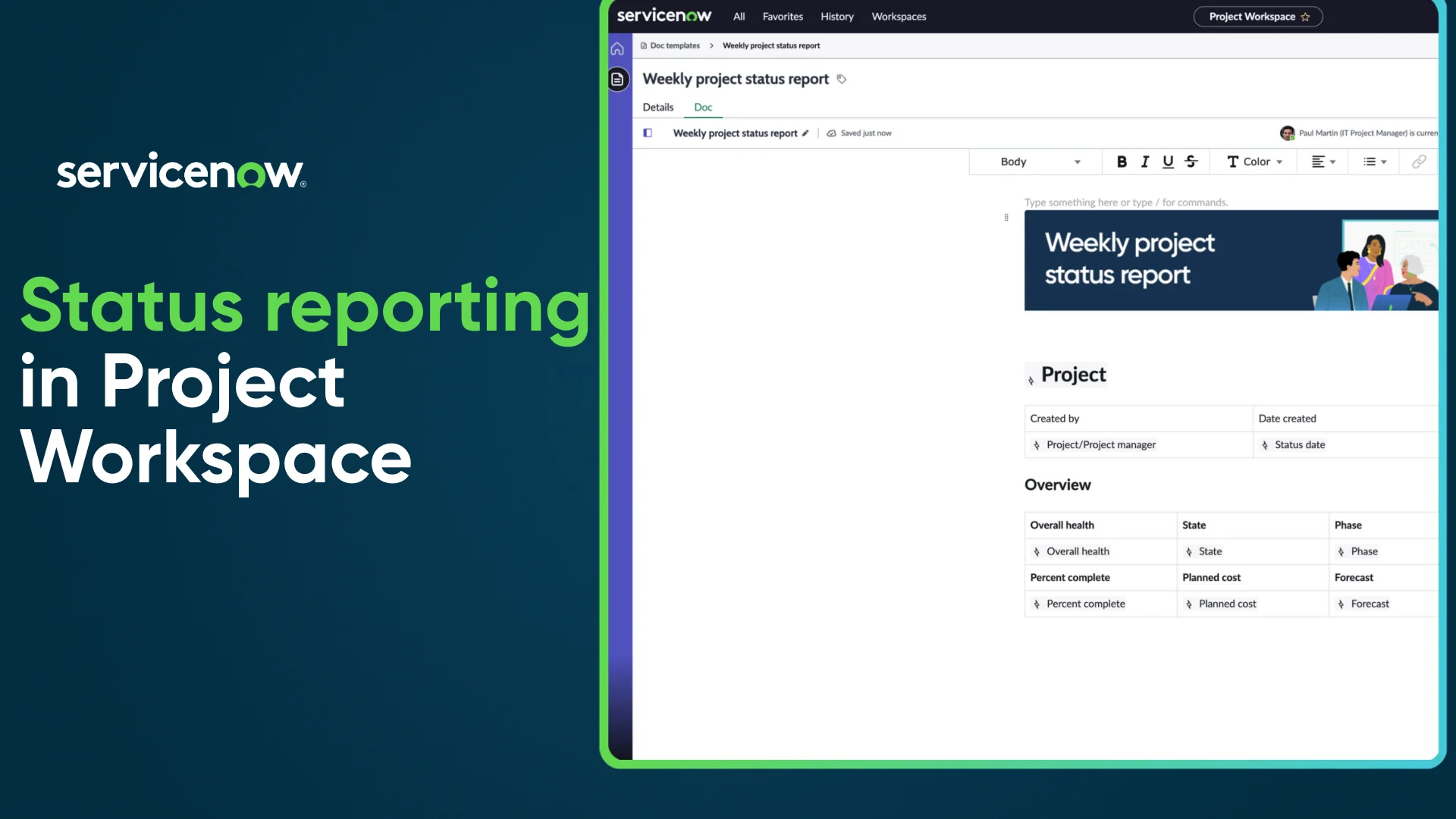
Status reporting in Project Workspace
(Modern Program/Project Workspace status report creation – clean, visual, and collaborative)
After Creation – Quick Tips
- All reports appear in the Program Status Reports related list on the program record.
- Financials, progress, and health automatically roll up from linked projects.
- You can schedule recurring reports via Scheduled Reports or use Performance Analytics for dashboards.
- Export options: PDF (native) or PowerPoint (with the optional “Export to PowerPoint for SPM” plugin).
- View all reports at All > Project > Program Status Reports.
Prerequisites
- program_manager role (or equivalent).
- At least one project linked to the program.
- Program Management plugin active (part of SPM).
These are the native, no-code ways to create professional program-level reports. If you need fully custom reports (e.g., pivot tables on the pm_program table), use All > Reports > Create New in Report Designer and filter by your Program.

Report sources
(Bonus: General Report Designer view if you want advanced custom reports)
Let me know if you want steps for scheduling reports, exporting to PowerPoint, customizing the report template, or creating dashboard reports next!
Here are the steps to customize Status Report Templates in ServiceNow Strategic Portfolio Management (SPM) Program Management (current as of 2026, Zurich/Yokohama/Xanadu releases).
These templates are managed in the modern Program Workspace (and identically in Project Workspace) using Doc Templates with dynamic tokens. This lets you create branded, reusable templates that auto-pull live data (health, financials, risks, projects, etc.) from your program and linked projects.
Prerequisites
- Project Workspace (sn_pw) and Document Management (sn_docs) plugins active (standard in SPM).
- Role: workspace_admin, program_manager, or admin.
- At least one active program with linked projects.
Step-by-Step: Create or Customize a Status Report Template
- Navigate to Program Workspace Go to All > Project > Program Workspace (or open any program record and click the workspace icon). Open your target Program. In the left navigation (L1 menu), click Docs (or Doc Templates).

Missing status reports & doc templates in Project … – ServiceNow Community
(Docs section in Program/Project Workspace navigation)
- Open the Template Center You’ll land in the Template Center showing default templates (e.g., Weekly/Monthly Program Status Report). Click New (or the + icon) to start a custom one.

Solved: Default project document templates – where do they… – ServiceNow Community
(Template Center – default status report templates)
- Create the New Template On the new Doc Template record:
- Name — e.g., “Custom Monthly Program Status – Branded”
- Category — Select Program Status Report (or Project Status Report — works for both in SPM)
- Description — Optional Click Save. The rich-text editor opens.
- Customize in the Rich-Text Editor In the Body section:
- Type / anywhere → Command palette opens.
- Select Insert Dynamic Content.
- Pick tokens (auto-populate on report creation):
- Program name, Overall health, % Complete, Planned vs Actual Cost
- Tables for linked Projects, Risks, Issues, Milestones, Financials
- Add your own text, headings, tables, logos, colors, or sections (Executive Summary, Achievements, Risks & Issues, Next Steps).
- Format with bold, colors, bullets, etc.
Status reporting in Project Workspace
(Rich-text editor in a status report template – type / to insert dynamic tokens)
- Save and Test the Template Click Save. Go back to your Program record → Status Reporting tab (or Create Status Report button). Choose your new template → Create. All dynamic tokens fill automatically with real program data. Preview, edit, and publish.
Advanced Customization Options
- Change default template or layout → Use UI Builder: Search for UI Builder → Select Program Workspace → Edit the Doc Template Record page (add widgets, conditional styling, custom scripts).

Platform: UI Builder || Knowledge & Troubleshootin… – ServiceNow Community
(UI Builder – editing Doc Template Record page for deeper layout changes)
- Add custom tables/tokens → Extend via extension points (StatusReportDynamicTemplateDataProvider and StatusReportDynamicTemplateSchema). Or manually edit the Content (JSON) field on the template record (for complex filters on risks, costs, etc.).
Tips & Best Practices
- Always copy an OOB template first (never edit originals — upgrade-safe).
- Dynamic tokens pull from the pm_program table + related lists (projects, demands, risks).
- For PDF/PowerPoint export styling → Use the separate Export to PDF/PowerPoint templates or the optional SPM export plugin.
- Test after upgrades — tokens and scripts can change slightly between releases.
This gives you fully branded, automated program-level reports with zero coding for most cases.
Let me know if you want:
- Steps to make your template the default
- How to add custom fields or conditional logic
- Scheduling recurring reports
- Or classic form-based template customization (older method)
Happy to provide the next set of screenshots or exact JSON examples!